Performance profiling with the Timeline
这篇timeline的使用教程,翻译自:https://developers.google.com/chrome-developer-tools/docs/timeline#timeline_event_reference
还有一篇很有价值的文章 javascript-profile 的测试,已经有人翻译了在此就直接列出来供大家参考吧。http://blog.csdn.net/woailincon/article/details/10503869
下面是原文翻译:
# 性能分析之timeline篇
The Timeline panel lets you record and analyze all the activity in your application as it runs. It's the best place to start investigating perceived performance issues in your application.
当你的应用程序运行的时候可以用timeline面板来记录和分析性能,这是最好的检测分析应用程序性能问题的工具了。
1. Timeline panel overview (timeline面板综述)
2. Events mode (events 模块)
3. Frames mode (帧模块)
4. Memory mode (内存模块)
5. Making a recording (制作一条记录)
6. Recording a page load (页面加载记录)
7. Tips for making recordings (制作记录的提示)
8. Analyzing Timeline recordings (分析timeline 记录)
9. Viewing details about a record (观察详细记录信息)
10. DOMContentLoaded and Load event markers (DOMContentLoaded 和 Load 事件标记)
11. Locating forced synchronous layouts (定位和同步布局)
12. About nested events (必备事件)
13. Filtering and searching records (过滤和搜索记录)
14. Zooming in on a Timeline section (放大缩小 一条记录)
15. Saving and loading recordings (保存和加载记录)
16. User-produced Timeline events (用户产生的timeline事件)
17. View CPU time in recordings ( 记录 中的 cpu运行时间)
18. Timeline event reference (timeline参考事件)
19. Common event properties (公用的事件属性)
20. Loading events (加载事件)
21. Scripting events (脚本事件)
22. Rendering events (重绘事件)
23. Painting events (渲染事件)
## Timeline panel overview
Timeline 面板 综述
The Timeline has three primary sections: an overview section at the top, a records view, and a toolbar.
timeline 有个主要区域包括:最上面的概要视图,记录视图和一个工具条
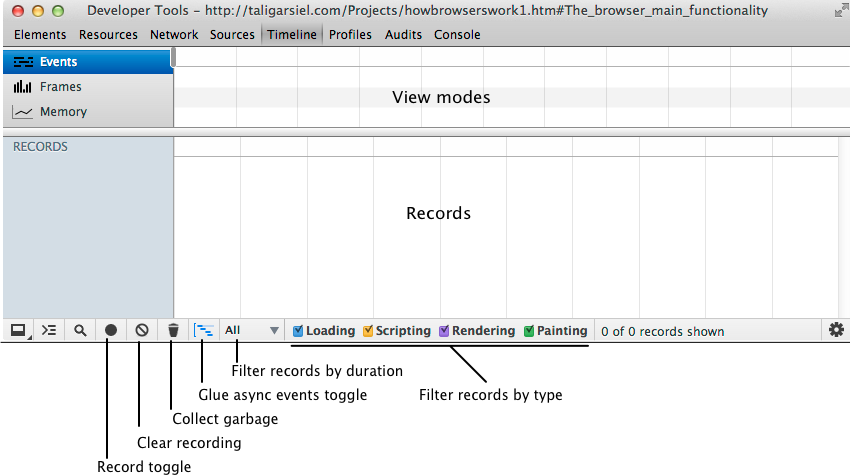
To start or stop a recording, press the Record toggle button (see Making a recording). Press the Clear recording button to clear records from the Timeline.
The Glue async events mode lets you more easily correlate asynchronous events to their causes (see About nested events). 同步异步按钮能更快速的找到修改异步事件的问题
You can filter the records shown in the Timeline according to their type or duration (see Filtering and searching records)
In addition to the detailed Records view, you can inspect recordings in one of three modes:
可以通过三种事件来检测一条记录的性能。
显示所有事件的参数 Frames mode shows your page's rendering performance.
展示页面的重绘的性能 Memory mode shows your page's memory usage over time.
展示页面的内存消耗
### Events mode
The Events mode provides an overview of all events that were captured during the recording, organized by their type. At a glance, you can see where your application is spending the most time, and on what types of tasks. The length of each horizontal bar in this view corresponds to time that event took to complete.
事件模块捕获了记录中的所有事件,种类的组织。你可以看到你的应用程序在哪个任务上花费了更多的时间,每一条横条都展示了完成花费的时间。
When you select a range of time from the Events view (see Zooming in on a Timeline section), the Records view is restricted to only show those records.
当你选择一个范围的时候,只显示这一个范围中的记录。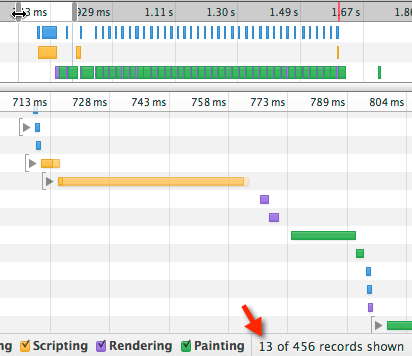
### Frames mode(帧模块)
Frames mode provides insight into the rendering performance of your application. A “frame” represents the work the browser must do to render a single frame of content to the display—run JavaScript, handle events, update the DOM and change styles, layout and paint the page. The goal is for your app to run at 60 frames per second (FPS), which corresponds to the 60Hz refresh rate of most (but not all) video displays. Consequently, your application has approximately 16.6 ms (1000 ms / 60) to prepare for each frame.
帧模块是用来展示你应用程序的性能。“帧” 意味着浏览器必须渲染一帧的内容包括:运行js,事件监听,更新dom和更改样式布局并且渲染出来,
浏览器每秒要渲染60帧,意味着60hz来刷新视频,因此你的浏览器大约有16.6ms来处理每帧。
Horizontal lines across the Frames view represent frame rate targets for 60 FPS and 30 FPS. The height of a frame corresponds to the time it took to render that frame. The colors filling each frame indicate the percentage of time taken on each type of kind of task.
其中横线代表着帧率的范围在60和30, 帧的高度代表着渲染这一帧的时间,各种颜色的填充代表着各自所占这一帧的百分比。
The time to render a frame is displayed atop of the Records view. If you hover over the displayed time, additional information appears about the frame, including the time spent on each type of task, CPU time, and the calculated FPS.
记录的上面是这一帧所渲染的时间如果滑过显示的时间会出现这一帧的相关信息,包括各个种类,cpu和计算fps的时间。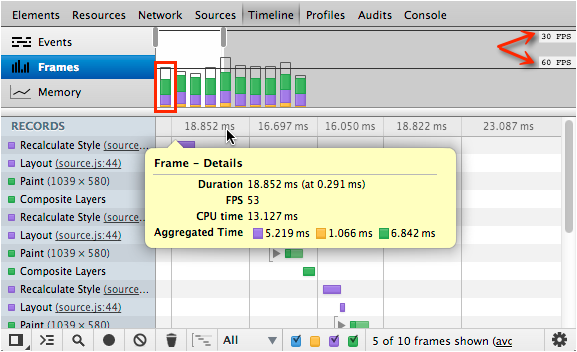
See Timeline demo: Diagnosing and fixing forced synchronous layout for a demonstration of using Frames mode.
查看timeline的例子:异步布局修复如何利用帧。
#### About clear or light-gray frames 关于浅灰色的帧
You may notice regions of a frame that are light-gray or clear (hollow). These regions indicate, respectively:
你也许会注意到浅灰色或者空帧的原因,分别表明: Activity that was not instrumented by DevTools 没有被工具感知到激活状态
Idle time between display refresh cycles. 空闲时间在显示刷新周期之间
The frames in the recording below show both un-instrumented activity and idle time.
下面的帧记录包括 不被感知的和空闲时间。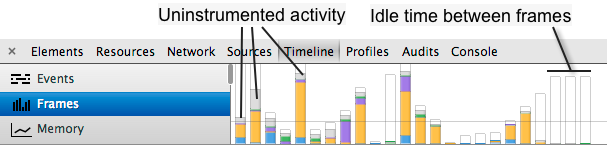
Want more details on the empty white space within the bars? Read Chrome Engineer Nat Duca's explanation, which describes how you can evaluate if you were bottlnecked by the GPU.
更多的详细信息在空白帧可以阅读这篇文章,他会解释GPU渲染瓶颈。
#### Viewing frame rate statistics (查看帧率统计)
The average frame rate and its standard deviation represented are displayed along the bottom of the Timeline panel for the selected frame range. If you hover over the average frame rate, a pop-up appears with additional information about the frame selection:
平均帧率和标准误差在timeline面板的底部会有显示,当你鼠标滑过的时候会弹出详细信息。 Selected range – The selected time range, and the number of frames in the selection.
选择范围 – Minimum Time – The lowest time of the selected frames, and the corresponding frame rate in parentheses.
最小时间 Average Time – The average time of the selected frames, and the corresponding frame rate in parentheses.
平均时间 Maximum Time – The maximum time for the selected range, and the corresponding frame rate in parentheses.
最大 Standard Deviation – The amount of variability of the calculated Average Time.
标准误差 Time by category – The amount of time spent on each type of process, color-coded by type.
时间种类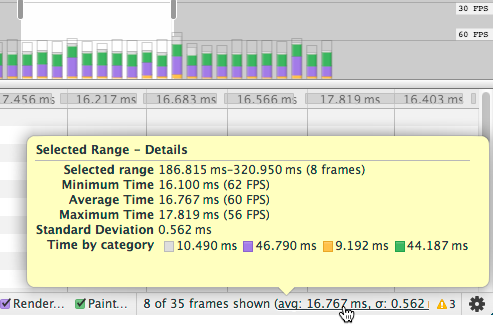
### Memory mode (内存)
The Memory view shows you a graph of memory used by your application over time and maintains a counter of the number of documents, DOM nodes, and event listeners that are held in memory (that is, that haven’t been garbage collected).
内存消耗视图,展示的着文档,文档节点事件监听,和没来得及被垃圾回收机制回收的内存。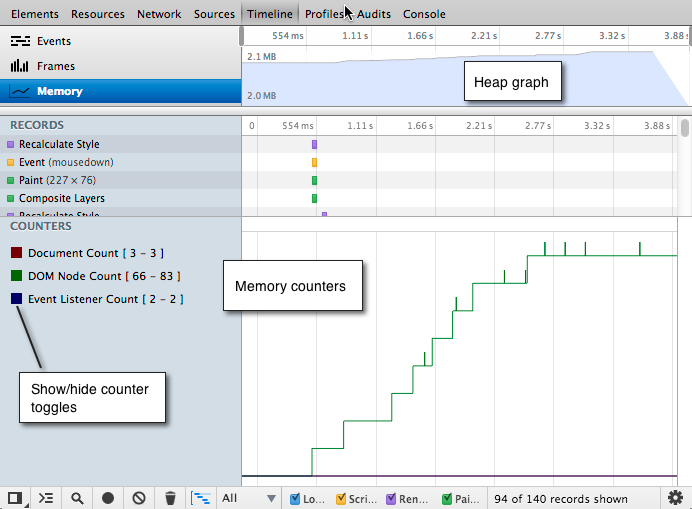
Memory mode can't show you exactly what is causing a memory leak, but it can help you identify what events in your application may be leading to a memory leak. You can then use the Heap Profiler to identify the specific code that is causing the leak.
内存视图不会展示内粗内存的泄漏问题,但是可以引导你发现分析内存泄漏的问题。然后你可以根据profiler 来确定是哪句句代码所引起的内存泄露。
### Making a recording 记录
To make a recording, you start a recording session, interact with your application, and then stop recording. It helps to know in advance the kind of activity you want to record — for example, page loading, scrolling performance of a list of images, and so forth, and then stick to that script.
当你应用程序运行的时候,你开始记录并停止。它能帮助你知道记录的各种内容 – 例如,页面加载,图片的滚动所消耗的性能等,就是你分析脚本很好的工具。
To make a recording: (记录)
The Record button turns red during a recording. 
记录的黑点会变成红点
1. Perform any necessary user actions to record the desired behavior. 通过这种方式来记录应用程序的行为。
2. Stop the recording by pressing the now red record button, or repeating the keyboard shortcut. 暗红色按钮来停止记录的行为,或者用键盘上的快捷方式。
### Recording a page load 记录页面加载
A common task is to record a page loading from the initial network request. Keyboard shortcuts are useful in this scenario, as they let you quickly start a recording, re-load the page, and stop the recording.
对已一个页面来说网络加载的响应式最为常见的,需要用到键盘上的快捷键,这样一来你就能很快的记录并停止一条记录。
To record a page load: 记录一条页面加载记录
1. Open any web page in a new tab or window. (打开window上的一个新的tab)
2. Open the Timeline and press Cmd+E (Mac) or Ctrl+E (Windows/Linux) to start recording. (用快捷键ctrl + E 来开始一条记录)
3. Quickly press Cmd+R or Ctrl+R to reload the browser page. (用快捷键 ctrl+r 来重新加载页面)
4. Stop the recording when the page has finished loading (look for the red event marker). (当页面加载完成停止页面加载 可以参考这里)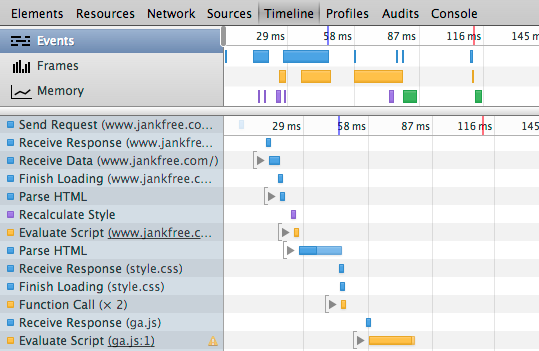
Here are some tips for making recordings:
这里有一些记录的小提示:
记录越短越好,这样更容易分析。 Avoid unnecessary actions. Try to avoid actions (mouse clicks, network loads, and so forth) that are extraneous to the activity you want to record and analyze. For instance, if you want to record events that occur after you click a “Login” button, don’t also scroll the page, load an image and so forth.
避免不必要的动作,尝试尽量去避免多余的行为(比如鼠标点击,网络加载,等)这些对你分析造成干扰的外来因。比如,你想记录一个动作,在你点击login按钮的时候,就不要滚动页面,加载图片等。 Disable the browser cache. When recording network operations, it’s a good idea to disable the browser’s cache in the DevTools Settings panel.
去掉浏览器缓存。打工记录一个网络请求操作,最好的方式是清除浏览器缓存。 Disable extensions. Chrome extensions can add unrelated noise to Timeline recordings of your application. You can do one of the following:禁止扩展程序,他会干扰。
Open a Chrome window in incognito mode 无痕浏览
Create a new Chrome user profile for testing. 新建一个新的用户来进行测试
## Analyzing Timeline recordings (timeline记录的解析)
This section provides tips for analyzing Timeline recordings.
分析timelin提供的记录
### Viewing details about a record (查看详细信息)
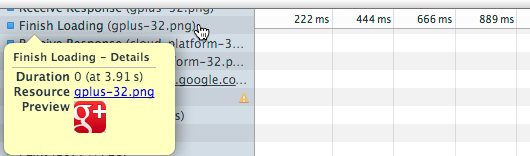
When you hover your mouse over a record in the Timeline, a pop-up appears with additional information about the event.
当鼠标滑过timeline的一条记录会弹出一些帧相关的额外信息。
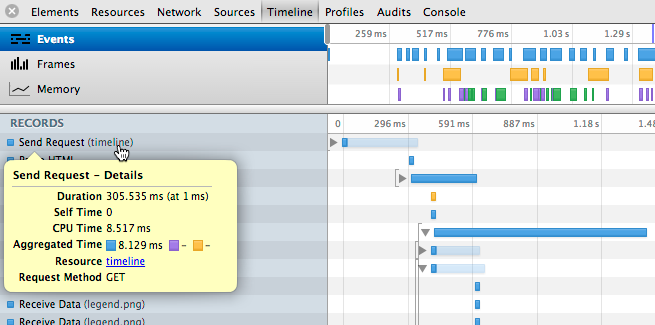
Certain details are present in events of all types, such as Duration and CPU Time, while some only apply to certain event types. For information on what details each kind of record contains, see the Timeline event reference.
各种类的事件详细信息的展现,例如cpu和运行消耗时间,这些只适用于一类事件,信息中各种详细内容,可以查看事件参考。
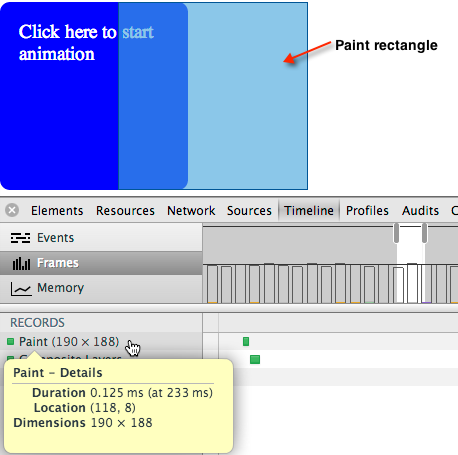
When you hover over a Paint record, DevTools highlights the region of the screen that was updated with a blue semi-transparent rectangle, as shown below.
当滑过一条渲染的记录,开发者工具高亮区域根据透明蓝色矩形条进行更新,如下图:
### DOMContentLoaded and Load event markers (dom内容加载完成 和 load事件记录)
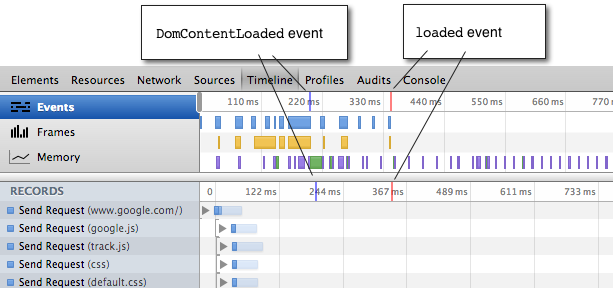
The Timeline annotates each recording with a blue and a red line that indicate, respectively, when the DOMContentLoaded and load events were dispatched by the browser. The DOMContentLoaded event is fired when all of the page’s DOM content has been loaded and parsed. The load event is fired once all of the document’s resources (images and CSS files, and so forth) have been fully loaded.
timeline有了一条蓝色和红色的记录线,分别浏览器的domcontentloaded 和load事件,DOMContentLoaded事件是当所有的dom加载完成并且解析完成,load事件会在所有的图片,样式等都加载完成的时候。
### Locating forced synchronous layouts 同步强迫布局
Layout is the process by which Chrome calculates the positions and sizes of all the elements on the page. Normally, Chrome performs layouts “lazily” in response to CSS or DOM updates from your application. This allows Chrome to batch style and layout changes rather than reacting to each on demand. However, an application can force Chrome to perform a layout immediately and asynchronously by querying the value of certain layout-dependent element properties such aselement.offsetWidth. These so called “forced synchronous layouts” can be a big performance bottleneck if repeated frequently or performed for large DOM tree.
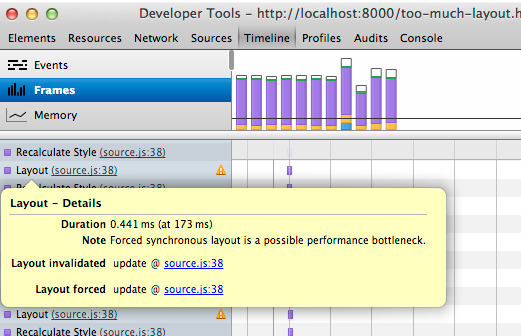
The Timeline identifies when your application causes a forced asynchronous layout and marks such records with yellow warning icon ( ). When you hover over the record, a pop-up appears that contains a stack trace of the offending code.
chrome计算页面上所有的元素的定位和尺寸。然而应用程序中会响应样式和dom进行更新。这些会让chrome批量处理样式和布局的更改和请求。 然而,一个应用程序会因为一些糟糕的代码然后被迫立即重新布局和算出结果值,因为那些只需要依赖布局后的结果例如: element.offsetWidth。 这些所谓的强迫立即布局,这些将是相当严重的性能瓶颈在重复大量的dom树中进行计算。
当你的timeline里面标记并显示了黄色的警告icon,当你鼠标滑过记录的时候会出现糟糕代码的相机执行信息。
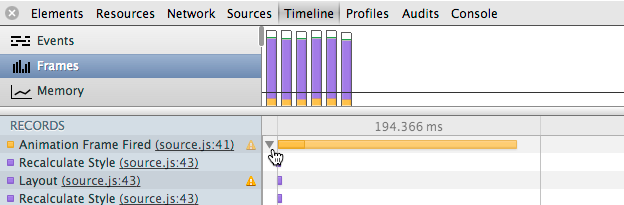
If a record contains a child record that forced a layout, the parent record is marked with a slightly dimmed yellow icon. Expand the parent record to locate the child record that caused the forced layout.
如果一条记录的子记录会强制进行布局,那么父记录会标记一条黄色的提示icon。原因是由于父记录的子记录引起的强制布局。
See the Forced Synchronous Layout demo for a demonstration of detecting and fixing these kinds of performance issues.
这里有一个强制布局的反面教材,并且通过timeline定位然后解决了这个问题。
### About nested events 一些嵌套事件
Events in Timeline recordings sometimes are nested visually beneath another event. You expand the “parent” event to view its nested “child” events. There are two reasons why the Timeline nests events:
一些时间记录往往被嵌套在了另外的一些事件内部,的类似父类和子类的概念。 有两个产生这种情况的原因。
Synchronous events that occurred during the processing of an event that occurred previously. Each event internally generates two atomic events, one for the start and one for the end, that are converted to a single “continuous” event. Any other events that occur between these two atomic events become children of the outer event. 同步事件执行的过程之中,事件内部生成了两个子事件,一个是开始一个是结束,也可以看成是一个连续的事件,一些其他事件引起的两个连续的时间会成为外面事件的子事件了。
Asynchronous events that occurred as a result of another event when glue mode is enabled. 一个事件的触发生成的结果引起另外一个事件的触发,在glue mode中。
Note: Glue mode is automatically disabled in Frames mode.
提示:帧模块会让Glue模块失效。
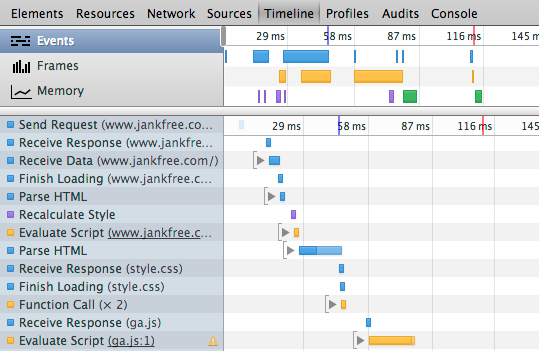
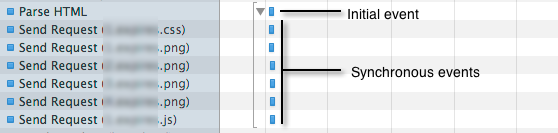
The following screenshot shows an example of nested synchronous events. In this case, Chrome was parsing some HTML (the Parse HTML event) when it found several external resources that needed to be loaded. Those requests were made before Chrome has finished the parsing, so the Send Request events are displayed as children of the Parse HTML event.
下面的屏幕截图展示了一个包含事件的例子。这个例子里chrome发现一些额外的资源需要加载并进行解析。这些请求会在chome完成渲染之前完加载,这些事件会在子事件中展示。
#### About glue mode glue模块
Many events in an application are the result of asynchronous operations. A loading of an image resource page results in a Send Request, followed by a Receive Response event, one or more Receive Data loading events, and a Finish Loading event. Sometimes, async events are separated from their causes by enough time to make correlating them difficult.
很多事件在应用程序中是异步操作的结果。在一个发送请求的loading图片,然后接收响应事件,一个或者更多的接收数据事件 和 一个完成loading
的事件。异步事件很难有足够的时间来分割他们。
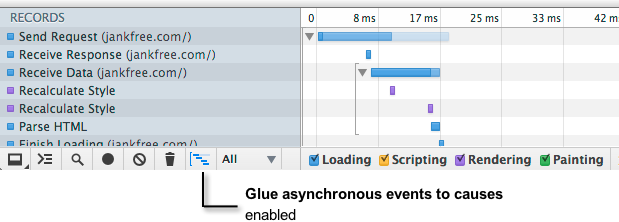
The Glue asynchronous events to causes toggle at the bottom of the Timeline panel causes asynchronous events to be nested as children of the event that caused them.
异步加载在底部有一个开关,让子事件是否开启异步,如下
#### Coloring of Timeline records with nested events 子记录的消息颜色
Timeline bars are color coded as follows:
timeline 条的颜色密码如下:
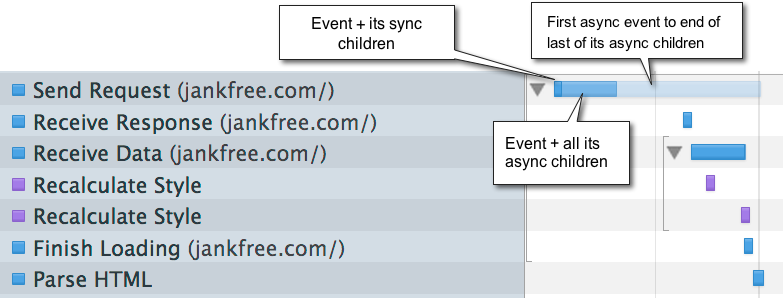
The first, darkest part of the bar represents how long the parent event and all of its synchronous children took. 第一条,深色的部分是父事件和所有同步的子事件的长度在整个所有请求的比例。
The next, slightly paler color represents the CPU time that the event and all its asynchronous children took. This would be the same as above if glue modeis off, and for events that don't have asynchronous children. 接着,稍微浅一点的部分是cpu的时间和所有的子请求的时间。 跟glue mode 相同关闭之后, 就没有异步的子请求。
The palest bars represent the time from the start of first asynchronous event to the end of last of its asynchronous children (only visible for events with asynchronous children while in glue mode). 几乎白色的条代表着第一个异步请求事件到最后一个异步请求事件,包括他所有的子事件(仅仅展示在有子事件的glue mode 模式)
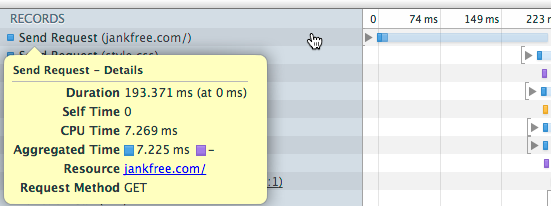
When you hover over a parent record, the following information is displayed:
当滑过父记录的时候,如下的信息想会被展示出来。
Duration matches the bar length from the event start to the end of its last child. 持续时间:会匹配事件开始到所有子事件结束的时间
Self Time is the time the event took without any of its children. 除去子事件花费的事件之外的事件。
CPU time matches that of CPU bar. cpu时间 匹配cpu条
### Filtering and searching records 过滤搜索记录
You can filter the records shown according to their type (only show loading events, for example), or only show records longer or equal to 1 millisecond or 15 milliseconds.
你可以通过这个按钮来展示或者过滤满足大于1毫秒或者15毫秒的记录。

You can also search records for a particular string by pressing Ctrl+F (Window/Linux) or Cmd+F (Mac), while the Timeline has focus. You can optionally filter records to only show those that contain the search term.
你也可以通过详细的字符串来搜索并且定位记录。
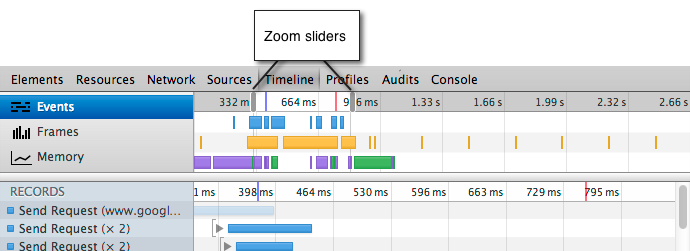
To zoom in on a Timeline section, do one of the following:
放大timeline的一部分区域如下:
In the overview region, drag out a Timeline selection with your mouse. 用鼠标拖动来选择区域。
Adjust the gray sliders in the ruler area. 在标尺区域调整灰色的条。
Here are some more tips for working with Timeline selections:
timeline 选择区域会有一些提示。
“Scrub” the recording with the current selection by dragging the area between the two slider bars. 显示区域显示的是通过拖动而出现的两条竖线间的区域。
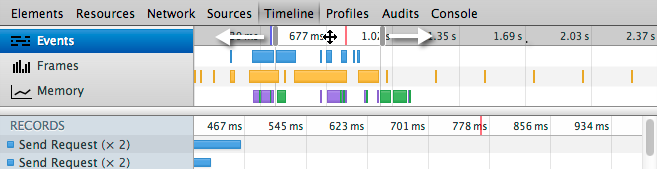
Trackpad users:用户触控板: Swiping left or right with two fingers moves the current Timeline selection.
左或者右滑动当前timeline的区域。 Swiping up or down with two fingers expands or contracts the current Timeline selection, respectively.
上下滑动滚轮可以放大或者缩小当前信息。 Scrolling the mouse wheel up or down while hovering over a Timeline selection expands and contracts the selection, respectively.上下滑动滚轮可以放大或者缩小当前信息。
Saving and loading recordings 保存和加载记录
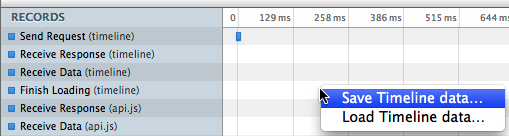
You can save a Timeline recording as a JSON file, and later open it in the Timeline.
你可以保存一个timeline记录作为json文件,然后用timeline打开它
To save a Timeline recording:
- Right+click or Ctrl+click (Mac only) inside the Timeline and select Save Timeline Data…, or press the Ctrl+S keyboard shorcut.
- 右击timeline区域,并且保存timeline数据…,或者点击ctrl+s保存
- Pick a location to save the file and click Save.
- 选择本地保存地址保存。
To open an existing Timeline recording file, do one of the following:
打开一个timeline的保存记录,如下:
- Right-click or Ctrl+click inside the Timeline and select Load Timeline Data…, or press the Ctrl+O keyboard shortcut.
- 右击插入timeline的数据…,或者点击ctrl+o来保存。
- Locate the JSON file and click Open.
- 选择要加载的json文件。
### User-produced Timeline events 如何得到timeline的事件
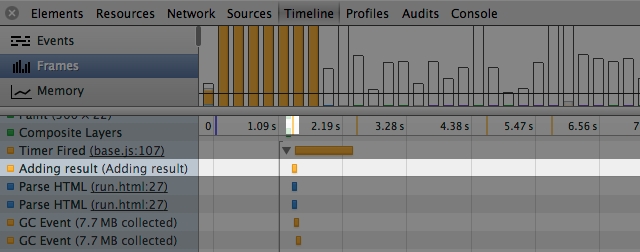
Applications can add their own events to Timeline recordings. You can use the console.timeStamp() method to add an atomic event to a recording, or theconsole.time() and console.timeEnd() methods to mark a range of time that code was executing. For example, in the following recording the console.timeStamp()was used to display an “Adding result” event. See Marking the Timeline in Using the Console for more information.
应用程序可以添加他们自己的事件到timeline记录中。 可以用 console.timeStamp() 方法添加一个原子事件的记录,或者也可以用 console.time() 和 console.timeEnd() 方法来记录一段代码的执行时间的范围,例如下面的记录就是用了console.timeStamp() 来添加结果事件. 看看记录的timeline 和 console 得到更多的信息。
### View CPU time in recordings 查看记录中cpu的运行时间
You can overlay CPU activity in Timeline recordings by enabling the Show CPU activity on the ruler option in DevTools settings.
你可以在timeline中设置一些选项来允许cpu规则覆盖原来的cpu活动规则。
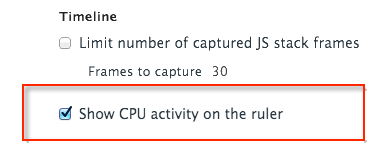
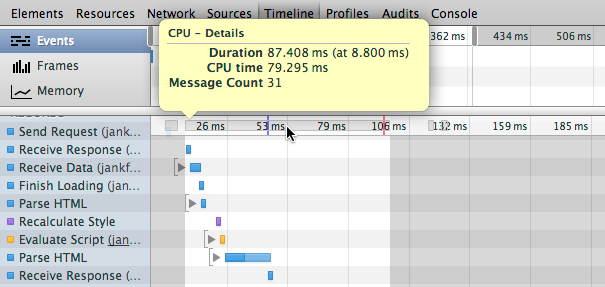
When this option is enabled, light gray bars appear above the Timeline records, indicating when the CPU was busy. Hovering over a CPU bar highlights the Timeline region during which the CPU was active (as shown below). The length of a CPU bar is typically the sum of all the (highlighted) events below it in the Timeline. If these don't match, it may be due to one of the following:
这个选项选中,将会有浅灰色的条出现在timeline记录中,说明档cpu繁忙的时候。 然而高亮的cpu条看到cpu运行的时间。 cpu条的长度代表着timeline中高亮事件长度之和,如果不符合就不会出现如下信息.
Other pages running on the same threads as the page being inspected (for example, two tabs open from the same site, with one site doing something in asetTimeout() call). 检查到另外一个页面运行着一个同样的线程(例如,两个运行着同样页面的程序,一个用settimeout的回调)
Un-instrumented activity. 没有运行。
## Timeline event reference (timeline 事件)
This section lists and describes the individual types of records that are generated during a recording, organized by type, and their properties.
这个区域列表描述了事件的种类属性信息
### Common event properties (公共事件属性)
Certain details are present in events of all types, while some only apply to certain event types. This section lists properties common to different event types. Properties specific to certain event types are listed in the references for those event types that follow.
用于某一事件的某些详细信息的展示。 这些区域列表属性有不同的种类。某一事件有以下的这些种类的信息属性:
Aggregated time 总时间
For events with nested events, the time taken by each category of events.
所有事件的花费时间。Call Stack 调用堆栈
For events with child events, the time taken by each category of events.
子事件花费的所有时间。
CPU time cpu时间
How much CPU time the recorded event took。
Details 详细
Other details about the event.
其他事件的详情。
Duration (at time-stamp) 持续时间
How long it took the event with all of its children to complete; timestamp is the time at which the event occurred, relative to when the recording started.
所有子事件都完成所消耗的时间; 记录开始的关联事件的触发的时间戳的时间。
Self time 父记录的时间
How long the event took without any of its children. 除去子记录的父记录的时间
Used Heap Size 曾经的积累大小
Amount of memory being used by the application when the event was recorded, and the delta (+/-) change in used heap size since the last sampling.
当记录开始的时候的内存消耗,在最后一个取样前的增加减少。
### Loading events 加载事件
This section lists events that belong to Loading category and their properties.
加载事件的属性和种类。
| Event | Description |
|---|---|
| Parse HTML | |
| 解析HTML | Chrome executed its HTML parsing algorithm. |
| html解析的信息 | |
| Finish Loading | |
| 完成加载 | A network request completed. |
| 网络请求的完成 | |
| Receive Data | |
| 接收数据 | Data for a request was received. There will be one or more Receive Data events. |
| 数据接收,这些事件经常会出现多个。 | |
| Receive Response | |
| 接受响应 | The initial HTTP response from a request. |
| 初始响应一个http请求 | |
| Send Request | |
| 发送请求 | A network request has been sent. |
| 已经发出的网络请求 |
#### Loading event properties 加载事件的属性
Resource (资源)
The URL of the requested resource.
url请求资源
Preview (预览)
Preview of the requested resource (images only).
针对图片的预览请求的资源。
Request Method (响应方法)
HTTP method used for the request (GET or POST, for example).
http方法用于请求的
Status Code 状态码
HTTP response code
http的响应码
MIME Type
MIME type of the requested resource.
响应资源的mime type
Encoded Data Length 数据编码后的长度
Length of requested resource in bytes.
响应资源的bytes 的长度
### Scripting events 脚本事件
This section lists events that belong to the Scripting category and their properties.
所有脚本和他们的属性的事件列表
| Event | Description |
|---|---|
| Animation Frame Fired | |
| 动画帧的触发 | A scheduled animation frame fired, and its callback handler invoked. |
| 帧的触发和毁掉函数的调用 | |
| Cancel Animation Frame | |
| 结束动画帧 | A scheduled animation frame was canceled. |
| 结束一个动画的帧 | |
| GC Event | |
| 垃圾回收事件 | Garbage collection occurred. |
| 触发垃圾回收 | |
| DOMContentLoaded | The DOMContentLoaded was fired by the browser. This event is fired when all of the page’s DOM content has been loaded and parsed. |
| Evaluate Script | |
| 执行脚本 | A script was evaluated. |
| 执行脚本 | |
| Event | |
| 事件 | A JavaScript event (“mousedown”, or “key”, for example). |
| 一个js的事件如:mousedown | |
| Function Call | |
| 事件回调 | A top-level JavaScirpt function call was made (only appears when browser enters JavaScript engine). |
| 高优先级的js回调模块(进入浏览器的js的时候出现) | |
| Install Timer | |
| 安装时间定时器 | A timer was created with setInterval() or setTimeout(). |
| 通过setInterval 和 setTimeout来创建时间定时器事件 | |
| Request Animation Frame | |
| 响应动画帧 | A requestAnimationFrame() call scheduled a new frame |
| 一个 requestAnimationFrame() 方法的回调会创建一个新的帧 | |
| Remove Timer | |
| 删除定时器 | A previously created timer was cleared. |
| 清楚之前创建的定时器 | |
| Time | A script called console.time()) |
| Time End | A script called console.timeEnd() |
| Timer Fired | A timer fired that was scheduled with setInterval() or setTimeout(). |
| XHR Ready State Change | The ready state of an XMLHTTPRequest changed. |
| httprequest更改的状态 | |
| XHR Load | An XMLHTTPRequest finished loading. |
| 一个异步请求加载 完成 |
#### Scripting event properties 脚本性能
Timer ID
The timer ID. 定时器id
Timeout
The timeout specified by the timer. 定时器
Repeats
Boolean that specifies if the timer repeats. 重复定时器
Function Call
A function that was invoked. 方法回调
### Rendering events (渲染事件)
This section lists events that belong to Rendering category and their properties.
关于渲染种类和属性的事件列表。
| Event | Description |
|---|---|
| Invalidate layout | |
| 无效的布局 | The page layout was invalidated by a DOM change. |
| dom更改没有引起页面的重新布局 | |
| Layout | |
| 布局 | A page layout was executed. |
| 页面进行布局 | |
| Recalculate style | |
| 重新计算样式 | Chrome recalculated element styles. |
| 重新计算元素的样式。 | |
| Scroll | |
| 滚动 | The content of nested view was scrolled. |
| 视图内容的滚动 |
#### Rendering event properties (渲染事件的属性)
Layout invalidated 无效的布局
For Layout records, the stack trace of the code that caused the layout to be invalidated.
对于布局记录,代码引起了无效的布局。
Nodes that need layout 需要重新布局的节点
For Layout records, the number of nodes that were marked as needing layout before the relayout started. These are normally those nodes that were invalidated by developer code, plus a path upward to relayout root.
在需要重新布局之前需要标记所有的节点元素。 这些节点可以通过开发代码使之没有效果,并且从根目录开始层层的网上渲染。
Layout tree size 树布局位置
For Layout records, the total number of nodes under the relayout root (the node that Chrome starts the relayout).
对于布局记录,所有的节点需要在根目录上重新渲染。
Layout scope 布局范围
Possible values are “Partial” (the re-layout boundary is a portion of the DOM) or “Whole document”.
可能是局部的也可能是整个文档
Elements affected 影响的元素
For Recalculate style records, the number of elements affected by a style recalculation.
通过重新计算而影响到的元素
Styles invalidated 无效的样式
For Recalculate style records, provides the stack trace of the code that caused the style invalidation.
代码引起的所有的样式重新计算。
### Painting events 渲染事件
This section lists events that belong to Painting category and their properties.
这个列表展示了渲染的各种属性
| Event | Description |
|---|---|
| Composite Layers | |
| 合成图层 | Chrome's rendering engine composited image layers. |
| 渲染合成图片层 | |
| Image Decode | |
| 图片解码 | An image resource was decoded. |
| 图片资源的解码 | |
| Image Resize | |
| 图片更改尺寸 | An image was resized from its native dimensions. |
| 通过更改本地图片资源的尺寸 | |
| Paint | Composited layers were painted to a region of the display. Hovering over a Paint record highlights the region of the display that was updated. |
| 混合显示区域的图层。 更新后的渲染记录 |
#### Painting event properties 渲染时间的属性
Location 位置
For Paint events, the x and y coordinates of the paint rectangle.
绘制的x,y坐标的绘制矩形。
Dimensions 大小
For Paint events, the height and width of the painted region.
绘制区域的宽高。
zp8497586rq